> For the complete documentation index, see [llms.txt](https://help.sortpin.com/llms.txt). Markdown versions of documentation pages are available by appending `.md` to page URLs; this page is available as [Markdown](https://help.sortpin.com/pinterest-guides/pinterest-ai-content-filter.md).

# How to Hide AI-Generated Pins on Pinterest

{% hint style="success" %}
**You can automatically hide or dim AI-generated pins on Pinterest.** SortPin's **Feed Cleanup** flags AI pins and removes them from your feed — or fades them to 50% so you can still see them without being distracted. Free, and it works as you browse.
{% endhint %}

> 🎉 **Trusted by 40,000+ Pinterest users worldwide** — AI clutter is now one of the top reasons people install SortPin.

## ⚡ The Fast Answer

| What you want                   | Setting                                              |
| ------------------------------- | ---------------------------------------------------- |
| 🚫 **Never see AI pins**        | Feed Cleanup → AI-generated Pins → **Hide**          |
| 🌫️ **See them, but faded out** | Feed Cleanup → AI-generated Pins → **Dim**           |
| 🏷️ **Just label them**         | Appearance → card elements → **AI Badge**            |
| 👀 **Spot them manually too**   | [Visual tells below](#-how-to-spot-ai-pins-yourself) |

***

## 🧹 Feed Cleanup — Hide or Dim AI Pins

### Where to find it

1. Open the **SortPin panel** on any Pinterest page
2. Go to the **Feed** tab
3. Find **Feed Cleanup**

### The three modes

| Mode     | What happens                                                 |
| -------- | ------------------------------------------------------------ |
| **Off**  | AI pins appear normally — no change                          |
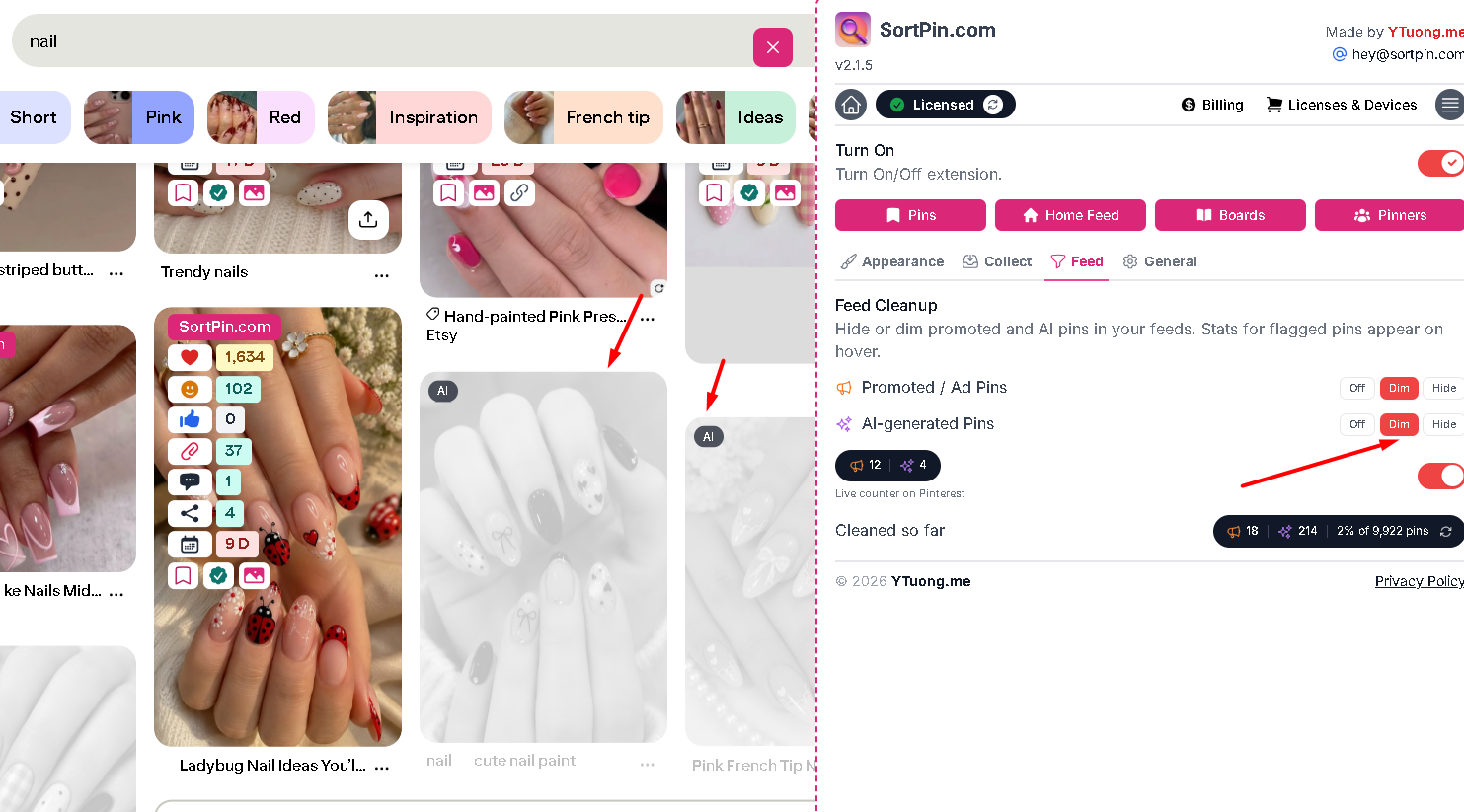
| **Dim**  | AI pins fade to 50% so they recede visually but stay visible |
| **Hide** | AI pins are removed from the feed entirely                   |

<figure><img src="/files/HU8SnDOOrTWhtNmiz3sV" alt="Hide or dim AI-generated pins on Pinterest with SortPin Feed Cleanup"><figcaption><p>Feed tab — Off / Dim / Hide controls for AI-generated pins and promoted pins, with live counters</p></figcaption></figure>

> 💡 **Dim is often the better default.** Hiding removes pins completely, which occasionally takes something useful with it. Dim keeps everything visible while making real content the thing your eye lands on.

### Live counters

Feed Cleanup shows you what it's doing rather than working invisibly:

| Counter                          | What it means                                                            |
| -------------------------------- | ------------------------------------------------------------------------ |
| 📊 **Live counter on Pinterest** | How many flagged pins are on the page you're viewing right now           |
| 📈 **Cleaned so far**            | Running total across your browsing, plus the percentage of all pins seen |

That percentage is genuinely eye-opening — most people have no idea how much of their feed is AI or promoted until they see a number attached to it.

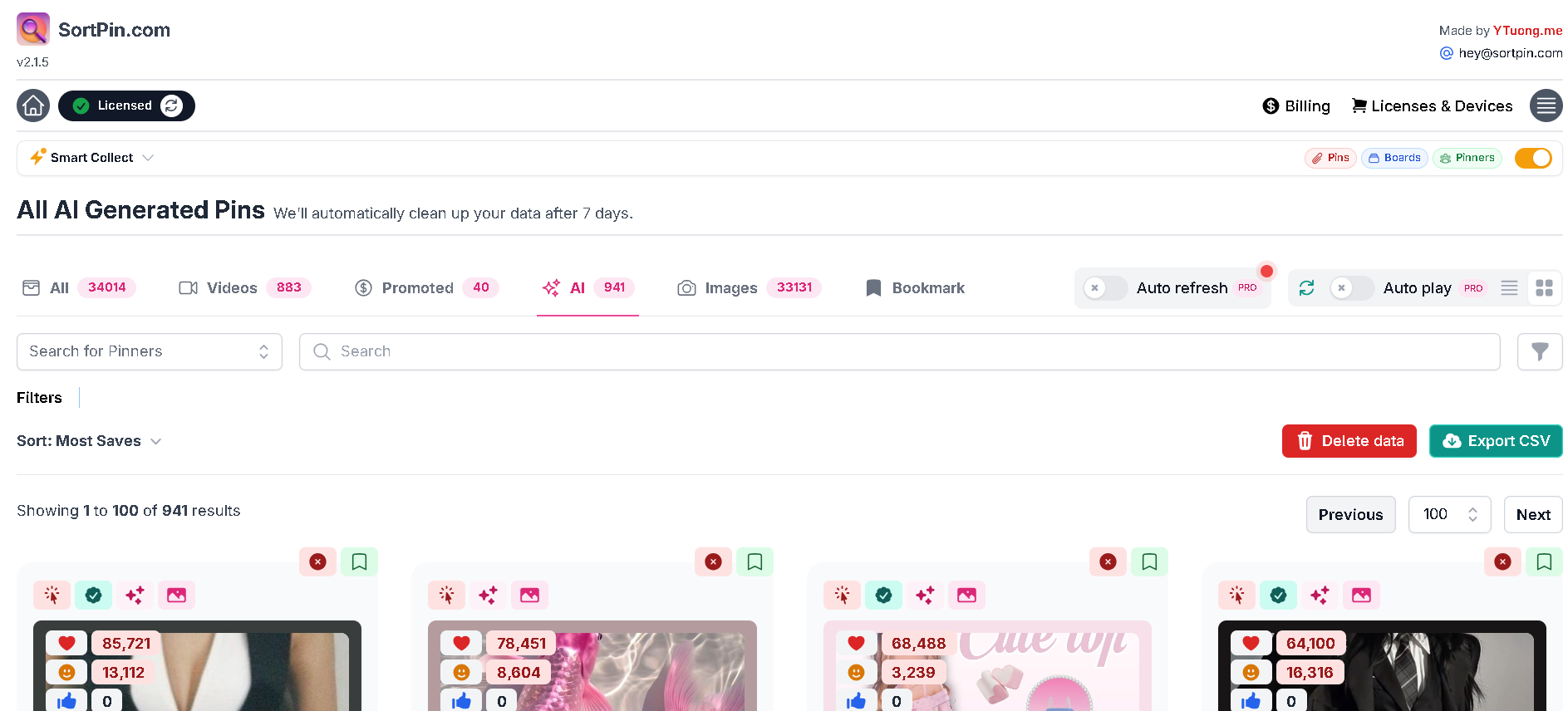
<figure><img src="/files/xuUZ4MeA6sG58LBe88Y6" alt="Pinterest AI-generated pins collected and filtered in the SortPin dashboard"><figcaption><p>The AI tab isolates every pin flagged as AI-generated — here, 933 of 33,817 collected pins</p></figcaption></figure>

> 🧹 The same Feed Cleanup panel also handles promoted pins. See [How to Hide Pinterest Ads](/pinterest-guides/hide-pinterest-ads.md).

***

## 🏷️ The AI Badge

If you'd rather **see** AI pins than remove them, turn on the badge instead.

1. Open the SortPin panel → **Appearance** tab
2. Under **Choose card elements**, enable **✨ AI Badge**

Now pins flagged as AI-generated carry a visible badge as you browse — useful when you're researching and want to know what you're looking at rather than filtering it out.

### An honest note on coverage

The badge and Feed Cleanup surface pins **Pinterest's own system has detected as AI-generated**. That detection is good but **not complete** — plenty of generated content goes unlabelled.

So treat this as a strong first filter, not a perfect one. The manual tells below cover what slips through.

***

## 🎯 Why AI Pins Are a Real Problem

Not aesthetic snobbery — they break Pinterest's core use case:

| Who you are                  | Why AI pins hurt                                         |
| ---------------------------- | -------------------------------------------------------- |
| 🎨 **Designer / architect**  | AI rooms have impossible geometry — useless as reference |
| 👗 **Fashion / stylist**     | The garment doesn't exist and can't be sourced           |
| 🍳 **Cook**                  | The recipe link is generated filler, or leads nowhere    |
| 💇 **Hair / nails / beauty** | The look isn't physically achievable                     |
| 🛒 **E-commerce seller**     | Product research gets polluted with fake products        |
| ✏️ **Artist**                | Reference anatomy is subtly wrong                        |

The core issue: **an AI pin looks aspirational but has no source, no product, and no reproducible outcome.**

***

## 🔍 How to Spot AI Pins Yourself

For the ones automated detection misses.

### Fast visual tells

| Area                        | What to look for                                        |
| --------------------------- | ------------------------------------------------------- |
| ✋ **Hands & fingers**       | Wrong count, fused fingers, impossible bends            |
| 📝 **Text in image**        | Garbled letters, invented words on signs and packaging  |
| 🪞 **Reflections**          | Mirrors and windows that don't match the scene          |
| 📐 **Architecture**         | Stairs to nowhere, misaligned windows, warped tiles     |
| 💍 **Jewellery & hardware** | Chains that merge, handles that don't attach            |
| 👁️ **Faces**               | Over-smooth skin, mismatched earrings, uncanny symmetry |
| 🌿 **Repeating patterns**   | Wallpaper and tiles that melt or shift mid-run          |

### Context tells (usually faster than studying the image)

1. **Click the destination link.** No link, a dead link, or a generic aggregator page is a strong signal.
2. **Check the pinner's profile.** Hundreds of hyper-polished pins posted rapidly = a generated content farm.
3. **Read the description.** Keyword-stuffed or oddly formal text often accompanies bulk-generated pins.
4. **Ask: could this be photographed?** If no, it wasn't.

> 💡 **The single fastest filter:** does this pin lead to a real page where I could actually buy, cook, build, or read this? Real pins usually do.

***

## ⚙️ What Pinterest Itself Offers

Pinterest has its own labelling and feed controls. Availability varies by region, account, and app version, and they change often.

| Control                       | Where                       | Reality                       |
| ----------------------------- | --------------------------- | ----------------------------- |
| 🏷️ AI labels on pins         | On the pin                  | Incomplete coverage           |
| 🚫 "See fewer like this"      | Pin **⋯** menu              | Shifts your feed slowly       |
| ⚙️ Generated-content settings | Settings → Privacy and data | Naming varies by version      |
| 🚩 Report a pin               | Pin **⋯** menu              | Strongest signal you can send |

> ⚠️ **None of these is an off switch.** They nudge your feed over weeks. That's the gap Feed Cleanup fills — it acts immediately, on your side, on every page you load.

***

## 🗂️ For Serious Reference Work: Build a Verified Library

If you rely on Pinterest professionally, the most durable fix is not depending on the live feed at all.

| Step                     | How                                                                                                                 |
| ------------------------ | ------------------------------------------------------------------------------------------------------------------- |
| 1. Filter the noise      | Feed Cleanup → **Hide** AI pins                                                                                     |
| 2. Verify what's left    | Open the destination link before saving                                                                             |
| 3. Check real engagement | [See hidden repin & save counts](/pinterest-growth-and-analytics/how-to-see-pinterest-pin-repin-and-save-counts.md) |
| 4. Save at full quality  | [Download Pinterest images](/download-guides-by-content-type/how-to-download-pinterest-images.md)                   |
| 5. Archive whole boards  | [Bulk download a board](/download-guides-troubleshooting-and-info/bulk-download-pinterest.md)                       |

A curated offline library doesn't degrade when the feed does. Design teams increasingly work this way.

***

## 🔎 Should You Just Leave Pinterest?

A fair question with a nuanced answer.

| Option                       | Reality check                                        |
| ---------------------------- | ---------------------------------------------------- |
| Other visual platforms       | Most large platforms now host generated content too  |
| Curated design archives      | Higher signal, far less breadth                      |
| Stock photo sites            | Verified sources, but paid and stylistically narrow  |
| **Pinterest + Feed Cleanup** | Keeps the largest library, removes most of the noise |

👉 Full comparison: [Pinterest Alternatives](/pinterest-guides/pinterest-alternatives.md)

***

## 🛠️ Troubleshooting

### "AI pins still appear after enabling Hide"

Feed Cleanup acts on pins **Pinterest flagged**. Unlabelled generated content gets through — use the [manual tells](#-how-to-spot-ai-pins-yourself) for those. Also refresh the page, since settings apply as pins load.

### "The counter says 0 but I see AI pins"

Same cause: those pins aren't flagged in Pinterest's data. The counter only counts detected pins.

### "Hiding removed too much"

Switch from **Hide** to **Dim**. You keep everything visible while making real content dominant.

### "Settings reset after reinstalling"

Feed Cleanup preferences are stored locally. Re-set them in the Feed tab after reinstalling.

### "My feed looks empty now"

In some niches a very high share of content is AI or promoted. That's information in itself — try **Dim** instead of **Hide** so you can see what's left.

***

## ❓ FAQs

**Q: How do I turn off AI content on Pinterest?** A: Pinterest has no off switch, but SortPin does. Open the SortPin panel → **Feed** tab → **Feed Cleanup** → set **AI-generated Pins** to **Hide** (removes them) or **Dim** (fades them to 50%).

**Q: Can you block AI pins on Pinterest?** A: Yes. SortPin's Feed Cleanup hides pins flagged as AI-generated as you browse. It works on detected pins, so a small amount of unlabelled content still slips through.

**Q: Does SortPin filter AI pins?** A: Yes — it's one of its most-used features. You can hide them, dim them to 50%, or leave them visible with an **AI Badge** so you know what you're looking at.

**Q: Why is my Pinterest feed full of AI images?** A: Generated images are cheap to produce at scale, and polished AI images attract clicks — which the feed then amplifies. Feed Cleanup breaks that loop on your side.

**Q: What does "AI modified" mean on Pinterest?** A: A label indicating the image was generated or altered with AI tools. Coverage is incomplete, so an unlabelled pin isn't proof the image is real.

**Q: Is there a Pinterest AI blocker extension?** A: Yes — SortPin includes one via Feed Cleanup. Be cautious with unknown "AI blocker" extensions that request broad permissions on your Pinterest session.

**Q: What's the difference between Hide and Dim?** A: **Hide** removes flagged pins from the feed entirely. **Dim** fades them to 50% so they stay visible but stop competing for attention. Dim is the safer default.

**Q: How can I tell if a Pinterest image is AI-generated?** A: Enable the **AI Badge** for flagged pins. For the rest, check hands, text, reflections, and architectural geometry — then click the destination link. No real source page is the strongest single signal.

**Q: Does Feed Cleanup slow Pinterest down?** A: It processes pins as they load, so the impact is minimal. If scrolling feels heavy after long sessions, [clear the local cache](/faqs/how-to-clear-cache-to-speed-up-the-sortpin.com-extension.md).

**Q: Can I hide ads at the same time?** A: Yes — the same Feed Cleanup panel has a separate Off/Dim/Hide control for promoted pins. See [How to Hide Pinterest Ads](/pinterest-guides/hide-pinterest-ads.md).

***

## 👉 Related Guides

* [📢 How to Hide Pinterest Ads & Promoted Pins](/pinterest-guides/hide-pinterest-ads.md)
* [🔄 Pinterest Alternatives Compared](/pinterest-guides/pinterest-alternatives.md)
* [🖼️ How to Download Pinterest Images](/download-guides-by-content-type/how-to-download-pinterest-images.md)
* [📊 How to See Pinterest Repin & Save Counts](/pinterest-growth-and-analytics/how-to-see-pinterest-pin-repin-and-save-counts.md)
* [🇻🇳 Tiếng Việt: Ẩn quảng cáo và pin AI trên Pinterest](/vi/an-quang-cao-pin-ai-pinterest.md)

{% hint style="info" %}
💬 **Seeing AI pins that aren't being flagged?** Tell our [chat support](https://go.crisp.chat/chat/embed/?website_id=48b6c12a-2212-4be1-9e27-2dad7e2d5fb0) team — real examples help improve detection.
{% endhint %}